
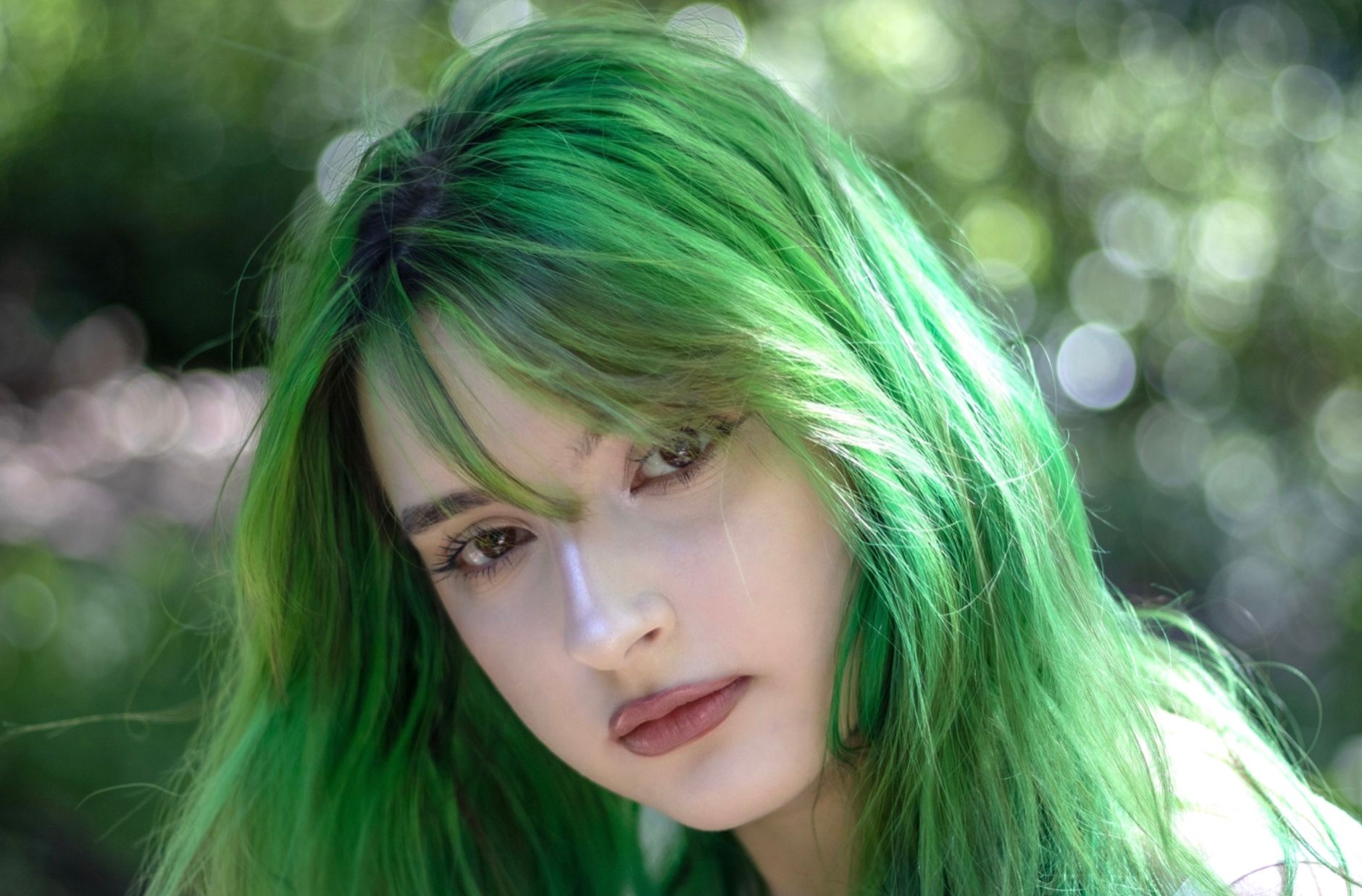

Have you ever wanted to see yourself with bright green hair before making a big change? A green hair filter lets you preview that look on a photo in minutes, with no dye and no regret. In this guide, you will learn what the filter does, where to find it, and how to apply it step by step. We also cover photo editing tips, how it differs from CapCut green screen tools, and ways to use your new look in video editing, profile photos, and cosplay looks. Finally, we share some simple safety tips for real hair dye, so your test look can turn into a happy real world result.
Key Takeaways
- The tool previews green hair on a photo. It does not dye your real hair.
- It is different from the green screen (chroma key) tool, which removes a green background from video.
- Clear, well lit selfies give the best results.
- You can bring your finished photo into a video as a thumbnail, intro card or before and after clip.
- Always do a patch test before using real dye.
What Is a Green Hair Filter?
A green hair filter is an image editing effect. According to the CapCut tool page, it changes the hair area in a photo to green while keeping the face, background and overall photo realistic. You can try shades such as emerald, neon, mint or pastel on your own selfie.
People use it for a few simple reasons. Some want to test a colour before visiting a salon. Others want a bold profile photo, or a look for a costume or party. The tool page lists these uses, including trying green hair before dyeing, updating a selfie, and planning a costume look.
The filter is mainly a photo tool. That matters for a video editing guide, and we explain why in the next section.
Green Hair Filter vs Green Screen: Do Not Mix Them Up
Many people search for green hair and land on green screen guides. The two tools do very different jobs.
| Feature | Green Hair Filter | Green Screen (Chroma Key) |
| Main job | Changes hair colour in a photo | Removes a green background in video |
| Works on | Selfies and portraits | Video footage shot on a green backdrop |
| Result | A preview of green hair | A clear background you can replace |
| Best for | Colour tests, profile photos, costume plans | Video backgrounds and special effects |
A CapCut green screen tutorial explains that CapCut uses the colour green to remove it, so the app replaces the green with transparency. That helps with backgrounds, not hair. Another guide notes you can use the Intensity slider to adjust how well the green colour is removed.
So if you want green hair, use the hair filter. If you want to swap a video background, use chroma key.
How to Find and Apply the Filter
Follow these steps on a phone or computer.
Step 1: Pick a Good Photo
Choose a clear selfie where your hair shape is easy to see. The tool page says the effect works best on selfies where the hair shape is clear and visible. Use soft, even light and look straight at the camera.
Step 2: Open the Tool Page
Go to the CapCut green hair filter page. You will see buttons such as Upload reference and Try it now. They lead into CapCut AI design tools. Menus can change over time, so follow the prompts you see on screen.
Step 3: Upload Your Selfie
Add your photo and choose the green shade you want to test. Start with one shade, then try others later.
Step 4: Review the Preview
Check the edges of your hair, your skin tone and the background. Zoom in if you can. The colour should look natural around the hairline.
Step 5: Compare Versions
The tool page suggests you can compare several versions of one selfie while keeping the pose and lighting consistent. Save two or three versions and look at them side by side.
Step 6: Save Your Favourite
Download the version you like. Keep the original too, in case you want to try again.
Choosing the Right Green Shade
Green is not one colour. A small change in shade changes the whole mood.
| Shade | Look and Feel | Good For |
| Sage or muted green | Soft and calm | Everyday wear |
| Mint or pastel | Light and playful | Fun looks, spring photos |
| Emerald | Rich and bold | Standout profile photos |
| Lime or neon | Very bright | Costumes, parties, festivals |
| Forest or dark green | Dark and moody | Subtle change with a hint of colour |
The tool page notes that it helps you narrow down the exact green family you want, from muted sage to electric lime. Showing a stylist your preview photo can also make the talk much easier.
Tips for More Realistic Results
- Use natural light. Face a window rather than a lamp.
- Keep hair visible. Pull back hats, hoods and heavy shadows.
- Avoid busy backgrounds. A plain wall helps the tool find your hair.
- Try bolder shades on dark hair. The tool page says stronger emerald or neon tones usually show more clearly than pale mint shades on dark hair.
- Test more than one shade. Colours look different next to your skin and clothes.
Remember that a preview is not a promise. Real hair colour depends on your starting shade, hair health and the dye used. A hairdresser can tell you what is possible.
Using Your Green Hair Look in Video Projects
Since the tool edits photos, here are ways to bring your new look into a video in CapCut.
- Thumbnail or cover image. Use your green hair photo as the first frame of a video.
- Intro card. Show the photo for a few seconds with a title on top.
- Before and after clip. Place your original photo first, then the green version, and add a quick transition.
- Freeze frame style. Add the photo between video clips to show your planned look.
- Profile or channel art. Use the same image on your social accounts so your look feels consistent.
Add text, music and simple effects to finish. Keep clips short, since photos can feel slow on screen if they stay up too long.
From Preview to Real Hair Dye: Stay Safe
A fun preview can make you want to dye right away. Slow down and plan first. The FDA has clear advice for people who colour their hair.
It says to follow the package directions, do a patch test by rubbing a tiny amount of dye on the inside of your elbow or behind your ear for two days, and repeat the test each time you dye. The agency also says to never dye eyebrows or eyelashes at home, wear gloves, keep dye away from children, and never mix different hair dye products.
If you see a rash or itching, do not use the dye. For bold colours such as bright green, many people choose a salon, since light bases and bleach need extra care.
Common Mistakes to Avoid
- Using a blurry or dark photo
- Judging the colour from only one picture
- Expecting the preview to match real dye exactly
- Mixing up the hair filter with the green screen tool
- Skipping the patch test before real dye
- Uploading photos without checking the tool privacy policy
A Sample Scenario
This is an illustrative example, not a customer story.
Jade is 24 and likes the idea of mint hair for summer, but she is unsure. She takes a selfie by a window and uploads it to the tool. She tries mint, sage and emerald, and saves each one.
Side by side, mint looks too light with her skin tone, while sage looks natural and calm. She shows the sage version to her stylist, who explains what is possible with her current hair. Jade also builds a short video with a before and after reveal for her friends. A few weeks later, she books a patch test and a colour session.
The lesson is simple. A preview saves guesswork, but good planning and safe practice still matter.
Frequently Asked Questions
What is a green hair filter?
It is an image editing effect that turns the hair area of a photo green while keeping the rest of the photo natural.
Can I use it on video?
The tool is made for photos. You can bring the finished image into a CapCut video as a thumbnail, intro card or before and after clip.
Is the tool free?
The tool page describes it as a free, easy tool for previewing green hair online. Features can change, so check the page for current details.
Does it work on dark hair?
Yes. The tool page says stronger shades such as emerald or neon tend to show more clearly on dark hair than pale mint.
Will real dye look the same as the preview?
Not always. Real results depend on your starting colour, your hair condition and the dye. Ask a stylist for advice.
Is the green hair filter the same as chroma key?
No. Chroma key removes a green background from video. The hair filter changes hair colour in a photo.
Is it safe to dye my hair after trying the filter?
The filter itself does not touch your hair. If you decide to dye, follow the label, wear gloves and do a patch test first.
Final Words
Green hair is a big step, and a good preview makes the choice easier. Start with a clear selfie, test a few shades and compare them side by side. Use your favourite version in photos or in a CapCut video, and keep the green screen tool for background edits. If you move on to real dye, follow the FDA safety steps and ask a stylist for help. A little planning goes a long way toward a look you will enjoy.