
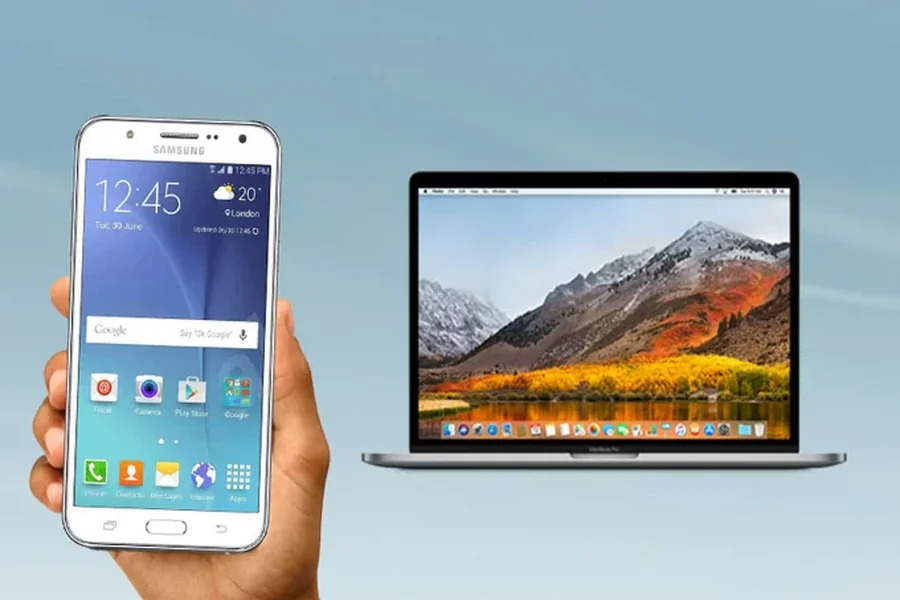

Phone photos can easily end up outside the main photography workflow, even when they contain useful material from the shoot. An Android device may contain venue details, lighting references, behind-the-scenes photographs, short video clips, or previews shown to the client during the session. Photographers should transfer photos from Android to Mac before editing and gallery preparation begin, placing every relevant file beside the camera images from the same project. This is less about moving a few pictures and more about maintaining a reliable project structure. Once phone files enter the correct folders, they can be reviewed, renamed, backed up, and separated according to purpose. The photographer then knows which images belong in the gallery, which support social media, and which should remain private production references.
Why Android phone photos belong in the shoot workflow
Android photographs can serve several useful purposes even when a dedicated camera produces the main deliverables. At a wedding, the phone may hold a photograph of the empty room, taken before anybody walked in. On a product set, it may carry the label reference or the exact position of a prop. Portrait sessions create another small pile: informal previews made between setups. Useful material, in other words, yet easy to lose among screenshots and personal pictures. A Mac may recognize an attached Android phone, but macOS does not provide the same built-in file-browsing experience it offers for Apple devices. For direct access to those folders, android file transfer for mac software such as MacDroid can bridge the phone and the Mac used for the project.
Choosing a transfer method around the files
No single transfer method is appropriate for every photography job. A short set can live comfortably in the cloud. That may be handy when the laptop is elsewhere or an assistant needs access. With a full shoot, the extra journey becomes more noticeable: an upload first, a download later, plus whatever the connection and storage allowance will bear. Email or a messaging app may be perfectly adequate for one preview. Before treating that preview as a working file, however, it is worth checking the attachment limit and the service’s image settings. A direct cable connection used with compatible transfer software avoids the upload and download stages, making it practical for larger folders and files such as RAW images, especially when connectivity is limited. Local wireless options can also be useful when a cable is unavailable. The decision should reflect the role of the images, since a temporary client preview does not require the same handling as an original file intended for editing or archiving.
Before moving anything, photographers should identify:
- which images belong to the active client project;
- whether the folder contains JPEG, HEIF, RAW, or video files;
- which files are working originals and which are only previews;
- whether capture dates and other metadata are needed for sorting;
- how much space is available on the Mac;
- where the first backup will be stored after import.
What MacDroid contributes to the workflow
MacDroid covers the stage between capturing an image on an Android phone and placing it inside an organized Mac project. It allows supported Android storage to be accessed through Finder, where selected files can be copied into an existing client folder. This avoids creating a separate cloud-based holding area solely for the transfer. Two-way movement is also available, so resized proofs or watermarked previews can be returned to the phone when they are needed for an in-person review. MacDroid states that photo metadata remains attached during transfer. That can help photographers who use capture dates and embedded information to sort files in cataloging software. Even with metadata preservation, several copied images should be opened and checked before the phone is cleared or the transfer is treated as a completed backup.
| Feature | Practical function | Photography use | Recommended check |
| Finder integration | Provides access to Android folders on the Mac | Places phone files inside an existing project structure | Confirm that the expected folders are visible |
| Metadata preservation | Keeps embedded photo information attached | Supports date-based sorting and catalog organization | Inspect metadata in the destination application |
| Two-way transfer | Moves files between the phone and Mac | Returns watermarked previews to the phone | Keep previews separate from original exports |
| Direct connection | Transfers files without a cloud upload stage | Helps with larger image folders and RAW files | Use a data-capable cable and verify free space |
These functions support file movement rather than editing, gallery delivery, or long-term storage. The transferred folder still needs to be reviewed and backed up through the photographer’s normal system. Keeping those stages separate makes it easier to notice missing files, incomplete copies, or images placed in the wrong project before work begins.
A repeatable import routine
A transfer process works best when it follows the same order after every shoot. Start by creating the destination folder on the Mac, using a consistent naming pattern based on the client, date, and session type. Connect the phone and copy only the material related to that assignment. Phone files should enter a dedicated subfolder such as Phone originals, BTS, Location references, or Client previews, rather than being mixed immediately with camera captures. Once copying is complete, open a selection of photographs and confirm that they display correctly. Check filenames, dimensions, capture dates, and any metadata required by the catalog. Only after verification should the complete project folder be copied to a second storage location. Files should remain on the phone until both the working copy and backup are confirmed.
Small setup details that prevent larger problems
Many transfer difficulties begin with ordinary equipment or settings. A USB cable may charge a phone but lack the wiring required for data transfer. Android devices may also connect in charging mode until file transfer is selected from the USB notification. Available disk space should be checked before importing a large set, especially when the phone contains RAW photographs or video. Folder names matter as well. Saving everything to Downloads may seem harmless, but it separates the files from the client record and increases the chance of later duplication. Photographers should also avoid deleting phone images immediately after seeing thumbnails on the Mac. Opening several full-resolution files provides better confirmation that the copy completed correctly and that the destination application can read the formats involved.
Common mistakes include:
- using a messaging conversation as permanent storage for working originals;
- mixing personal photographs with client material;
- placing previews and final exports in the same folder;
- waiting until gallery upload day to collect phone images;
- removing files from the phone before checking the transferred copies;
- treating the first Mac copy as a complete backup.
A cleaner route from capture to delivery
A well-prepared client gallery begins with files that are easy to locate and understand. Phone images can strengthen that gallery, support social content, or preserve useful production information, but only when they enter the project before editing decisions are finalized. Cloud storage, messaging services, wireless tools, and direct transfers all have appropriate uses, depending on file volume and purpose. For photographers working primarily on a Mac, MacDroid provides one direct route for bringing selected Android files into the established folder structure while retaining photo metadata. MacDroid handles the file transfer, while the photographer remains responsible for organizing, checking, and backing up the files. Build the destination folder before copying. Open a few arrivals rather than trusting their thumbnails. Leave the originals alone until the backup exists, and do not let a client preview wander into the final export folder. When that process becomes consistent, Android photographs stop being scattered extras and become manageable parts of the assignment.