

Most people carry around a folder of images they wish looked different. A product photo that needs a fresh backdrop. A sketch that begs for realistic skin and lighting. A portrait that feels almost right but lacks texture. Until recently, bridging that gap meant hours of manual retouching or starting over with expensive photo shoots. Image to Image steps into that gap with a quieter promise: not to replace your creativity, but to give it a faster path toward a tangible result.
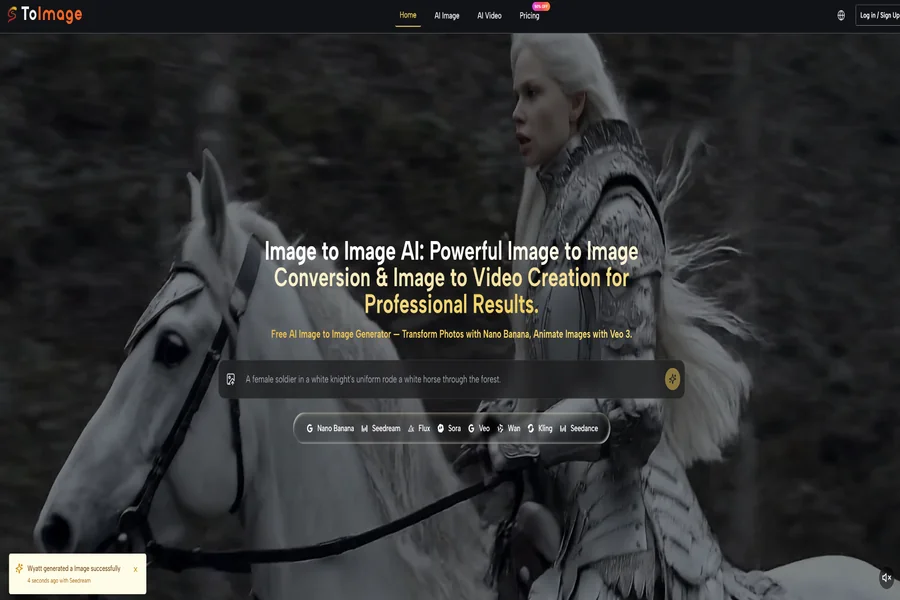
The platform behaves less like a single AI filter and more like a dispatcher. It routes your uploaded reference through different visual models depending on what you want to achieve—photorealism, illustration, stylized rendering, or even a short video clip. My own experiments with it revealed something unexpectedly practical. The strength of the system lies not in any one model, but in the ability to switch between them without leaving a single workspace.
Why Image Translation Feels Different Now
For years, image-to-image generation meant picking a style preset and accepting a one-shot outcome. The results were often impressive at first glance, yet frustrating when you needed precise control over a collar shape, a shadow direction, or the texture of fabric.
What shifts the experience today is the concept of model routing. Instead of forcing a single engine to handle every type of visual task, a platform built around multiple specialized models can treat a product shot differently from a character portrait. In my tests, sending the same fashion flat-lay through a photorealism-focused model versus an illustration model produced not just two versions of one idea, but two distinct creative directions—both usable, each with its own emotional weight. That kind of range usually takes separate tools and separate budgets.
The workflow also respects something that traditional editing often ignores: preserving the structural DNA of your original image while changing its skin. When I kept the composition but replaced the entire material language of a room interior, the spatial relationships remained reliable. That mix of faithfulness and reinvention is what makes the process feel more like collaboration than automation.
Models That Shape the Outcome
The most consequential decision inside any AI-driven creative tool is which engine interprets your prompt. On this platform, that choice becomes a deliberate creative lever rather than a hidden setting.
Photorealistic Refinement Models Work Best for Commercial Scenes
When the goal is a product image that could appear on a brand’s homepage, models trained on high-resolution photographic datasets tend to preserve texture details that matter: fabric weaves, metal reflections, skin pores. In my sessions, these models delivered the kind of lighting consistency that reduces the need for post-generation color grading. Skin tones did not drift into unrealistic saturation, and shadows remained physically plausible across multiple test runs.
Stylized and Artistic Engines Open Unexpected Directions
Switching to illustration or concept-art models changes the conversation entirely. A portrait becomes a graphic novel frame. A street photograph turns into an architectural sketch. What surprised me was how well the platform preserved facial identity when I deliberately moved from a photo to a painterly style. This is not trivial; many style-transfer tools distort faces beyond recognition. Here, the structural anchors held firm enough that the person remained recognizable, even under heavy artistic treatment.
A recent analysis by MIT Technology Review on the generative AI creative stack observed that creative professionals increasingly value “model liquidity”—the ability to move a project across different generative architectures without restarting from scratch. That observation aligns closely with what a multi-model AI Image to Image environment actually delivers in daily use.
Video Models Extend a Still Frame Into a Living Scene
The inclusion of video generation models—specifically those capable of taking a still image and adding motion, environmental extension, or subtle cinemagraph-like loops—felt like a natural extension rather than a bolted-on feature. A still product shot gained a slow camera push-in. A landscape photograph received drifting fog and moving water. None of these clips ran longer than a few seconds, which is typical for current consumer-accessible video models. But that duration proved sufficient for social media formats where a brief, looping visual stops the scroll.
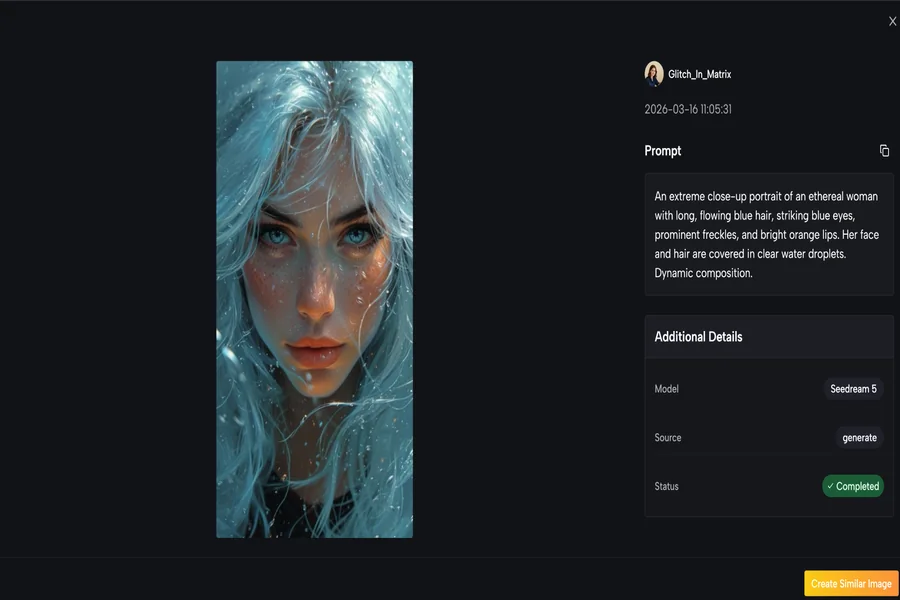
How I Use Image to Image in Four Steps
The actual workflow follows a logical sequence that matches how most visual creators think. Each step opens a decision point that influences what comes next, and I found that skipping straight to generation without clarifying those decisions often led to weaker output.
Step One: Upload and Define Your Source Material
The starting point is your reference image, and the platform accepts common formats without forcing a specific resolution or aspect ratio. I uploaded everything from smartphone snapshots to high-resolution studio composites, and the system handled each without cropping surprises.
Choose a Reference That Carries Enough Visual Information
Images with clear subjects and defined edges produced more predictable results in my tests. When I fed in photos with heavy motion blur or extreme low light, the generated output sometimes invented details that felt disconnected from the original. The platform does not refuse such images, but the creative risk increases. Think of your upload as the foundation; the stronger it is, the fewer generations you will need to land on something you want to keep.
Consider Using Multiple Reference Images for Style Control
One of the more helpful features is the ability to upload up to four reference images to guide a single generation. I used this when I wanted the lighting from one photo, the color palette from another, and the composition from a third. The model then negotiated between these inputs. When the references were compatible, the synthesis felt organic. When they contradicted each other strongly, the result could turn muddy—so keeping references within the same visual family is a practical guideline, not a rule.
Step Two: Select a Model and Write Your Prompt
After the image is in place, the interface presents the available models. Some are labeled for speed and photorealism, others for artistic interpretation, and a separate set handles video generation. The names themselves are less important than understanding what broad direction each model favors.
Model Choice Shapes the Arena, Not Just the Style
Choosing a photorealistic model means the system will prioritize accurate materials, coherent lighting, and plausible details. Choosing an illustration model means it will prioritize line quality, color mood, and abstraction. I learned to match the model to the end use: commercial product work went one way, personal creative exploration went another. This single choice is often the difference between a usable output and one that needs to be discarded.
Prompts Work Best When They Describe, Not Command
I had better results when I described a scene the way I would to a human art director—focusing on materials, light quality, mood, and spatial relationships—rather than issuing short keyword commands. A prompt like “soft diffused window light, linen fabric on an oak table, warm neutral tones, shallow depth of field” consistently outperformed fragmented prompts. The models respond to descriptive language, and specificity tends to reduce undesirable surprises.
Step Three: Generate and Evaluate Multiple Variants
The platform provides options to run generations in parallel or sequentially. I found that generating several variants at once gave me a quicker sense of which direction the model was taking my reference. It also revealed patterns: certain configurations consistently missed a detail, while others landed it on the first try.
Compare Outputs Across Models When Available
One practical advantage I appreciated was the ability to run the same image through different models simultaneously. Seeing a product rendered as a photograph, an illustration, and a stylized 3D concept side by side made creative decisions faster. It turned an iterative guessing game into a comparative editing session.
Do Not Expect Perfection on the First Generation
My hit rate for a fully satisfactory first-generation output was perhaps one in three attempts. The rest needed prompt adjustments, a different model selection, or a refined reference image. This is not a flaw unique to this platform; it reflects the current state of generative AI across the board. Setting realistic expectations prevents frustration and positions the tool as a rapid prototyping engine rather than a magic button.
Step Four: Refine With Face Correction and Upscaling
Once a promising generation appears, the platform offers two practical post-processing tools. Face correction fixes minor anatomical glitches that sometimes occur in portrait outputs. Upscaling increases resolution for print or large-format display.
Face Correction Fixes What the Model Occasionally Misses
The face correction tool recovered several portrait generations that were otherwise strong but had minor asymmetry or eye inconsistencies. It is a targeted fix, not a full facial reconstruction, and it worked best when the underlying generation was already close to correct. I used it as a safety net rather than a crutch.
Upscaling Adds Practical Resolution for Final Delivery
The upscaling step raised output resolution noticeably without introducing sharpening artifacts in my tests. For images destined for high-DPI screens or print, this step was worth the extra processing time. It also made the difference between a social-media-ready image and one suitable for a printed brochure.
Where the Magic Meets Its Limits
No honest exploration of AI-driven image generation can ignore the rough edges. The outputs vary in quality from generation to generation, even with identical settings. Complex prompts with multiple subjects and precise spatial arrangements sometimes confuse the models, producing compositions where elements float or overlap incorrectly. In my tests, highly detailed backgrounds behind transparent objects such as glassware remained a challenge—a finding consistent with broader research on generative image models’ handling of refraction and transparency.
Video generations exhibit similar constraints. Clips longer than a few seconds can drift, introducing temporal inconsistencies where a face or object morphs slightly between frames. Fast motion occasionally creates visual artifacts that break immersion. These limitations do not make the tool less valuable; they make it honest. Understanding where the output is likely to stumble helps you decide when to trust the generation and when to reach for a manual edit in external software.
A survey published by the content automation platform Synthesia in early 2025 on AI-generated media adoption found that 68% of creative professionals accept multiple generations as standard workflow, not as a sign of tool failure. That expectation matches my own experience: the value lies in speed of iteration, not in one-click perfection.
Comparing Two Creative Workflows Side by Side
The table below captures what I observed when shifting from a traditional image-editing workflow to a model-driven approach on this platform. The differences are not about right or wrong; they are about speed, flexibility, and the kind of creative decisions each workflow encourages.
| Aspect | Traditional Editing Suite | Image to Image Multi-Model Platform |
| Primary approach | Manual layer and mask manipulation | Text-guided generation from reference images |
| Style transfer time | Hours for complex photorealistic retouching | Seconds to minutes per variant generation |
| Required skill floor | High; demands software proficiency | Moderate; prompt writing and visual taste matter more |
| Creative iteration speed | Slow; each variation requires manual work | Fast; parallel generations across multiple models |
| Model and style variety | Limited to installed filters and actions | Broad; multiple specialized engines selectable per task |
| Output fidelity control | Pixel-level precision | High-level guidance; fine details may need secondary correction |
| Video generation from stills | Requires separate motion graphics tools | Integrated, with typical clip lengths under ten seconds |
The traditional toolkit remains irreplaceable for tasks demanding surgical precision: compositing multiple exposures, removing complex objects, or preparing artwork for specific print profiles. Where the multi-model platform earns its place is earlier in the creative funnel—when you are still exploring what an image could become, testing directions, or producing volume variations that would take days through manual editing.
A Broader Shift in How We Think About Images
What emerges from working with such a platform is not a replacement for skill, but a compression of the distance between an idea and its first visual draft. The model routing, the multi-reference system, and the integrated video capability do not remove the need for creative judgment. They remove the repetitive labor that often sits between having an idea and seeing whether it works.
For photographers testing alternative treatments before a client presentation, for designers prototyping packaging in different material finishes, or for content creators who need still images and short motion clips from a single project, the value proposition is straightforward. The technology does not promise magic. It delivers a workspace where different visual possibilities can be explored, compared, and refined at a pace that would be difficult to sustain with traditional tools alone. And that, measured against the honest reality that generations sometimes fail and always need a final human eye, is enough to make the workflow feel not like a gimmick, but like a new creative habit.